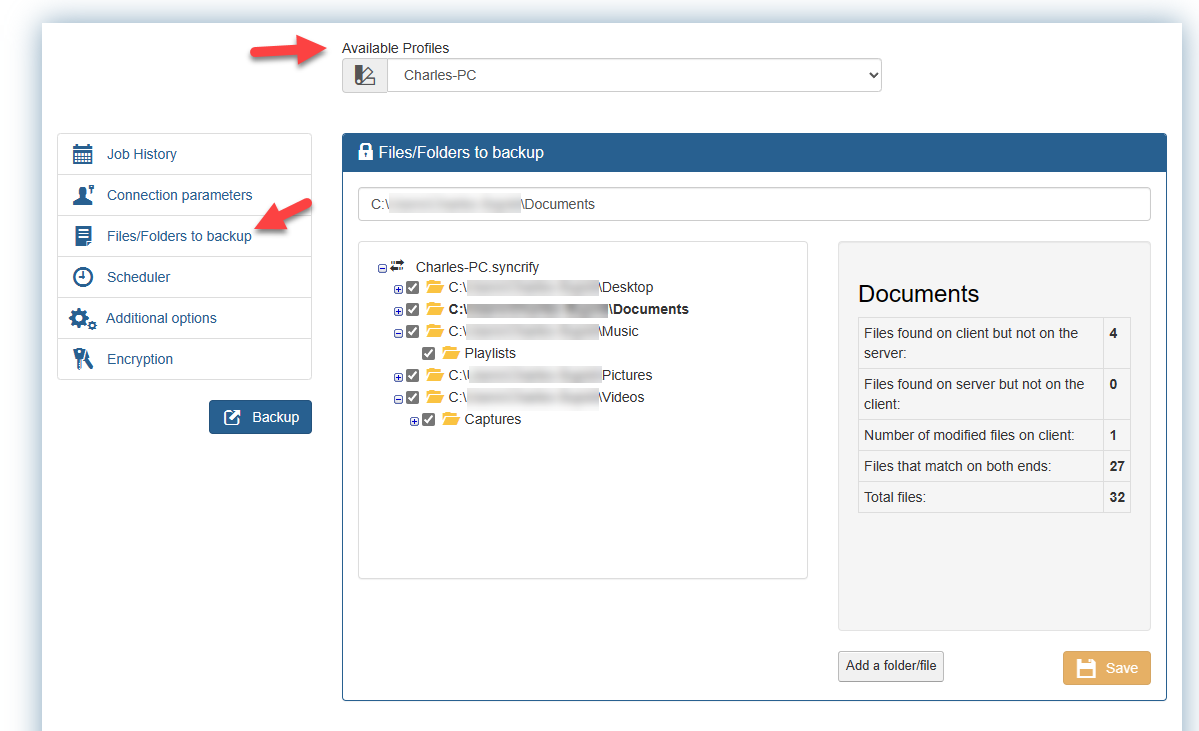
Profiles are located under the Files/Folders to backup option. Profiles defines a set of folders / files that are grouped together for backup.
When Accra Backup client is first used on any client, it automatically creates a profile and gives it a name that matches the machine's host name. Typically, you would only need one profile per machine for a user. However, if you wish to backup certain files at a different schedule, you might want to create additional profiles.
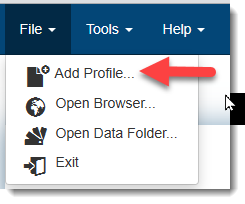
Users can manually create additional profiles by using the File/Add Profile option
Data Folders to Backup
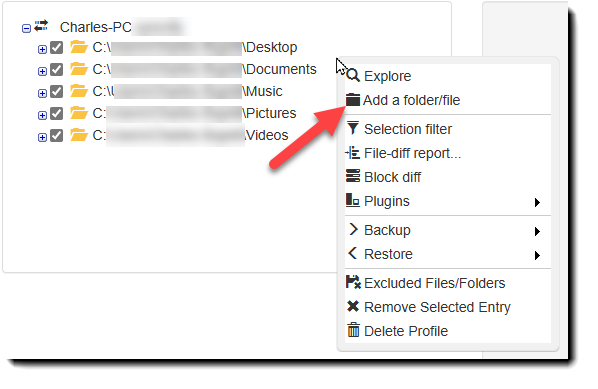
By default, every file in a folder listed in the folder list area of the screen is selected for backup. To exclude, a file or sub folder remove the check mark from the backup folders / files. To add a folder drag and drop the folder in the folder list area. Users can also right click the folder area which will display a pop up menu offering various options including Add a folder/file feature.
Optimize Backup
▪For optimum performance always add the folder of the file you want to backup in the folder list. A file must be located in a folder to be backed up.
▪Create separate profiles for everyday you want to backup large files instead of using versioning. This will reduce backup time by 50%
IMPORTANT:
Use the Save button to save your Profile settings
|