File restoration is accomplished either by a web browser or using the Backup client.
Restoring
Restoring Files - You can either restore the entire profile or selectively pick the file(s) you want to restore. The client program automatically handles decrypting files if they were backed up using encryption. Clicking on a file or folder will restore only that file or folder and all sub-folders, while right clicking on the profile and hitting restore will restore the entire profile.
Restoring An Entire Profile
Follow the steps below to restore an entire profile
•Select the profile you want to restore. If you do not have the profile on this machine, try creating a new profile with the same name. Profile names are case-sensitive. When a new profile is created, it won't contain any folders on the left hand side. This is okay. Go to the Folder/File Selection screen and right click the folder area to display the pop up menu. Select the Restore option and the Entire Profile option.
•Clicking on a file or folder will restore only that file or folder and all sub-folders, while right clicking on the profile and hitting restore will restore the entire profile.
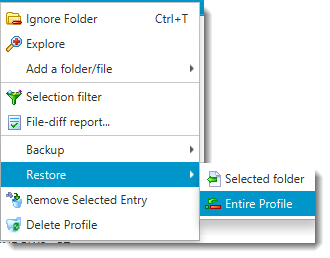
•The Backup client will first pull the profile from the server matching the name. If it is not able to pull a profile, ensure the profile name is correct.
Once the profile is download, it will start restoring the files.
Restoring Selective Files
Selective files can only be restored if the profile exist on your machine. Follow the steps above but choose the Selected Folder option.
•Chose the appropriate profile from Available Profile list on the top
•Navigate to the file you want to restore on the left hand side
•Click the right mouse button and select Restore selected file