Sending files
Following steps demonstrate how to send large files to users on the Internet.
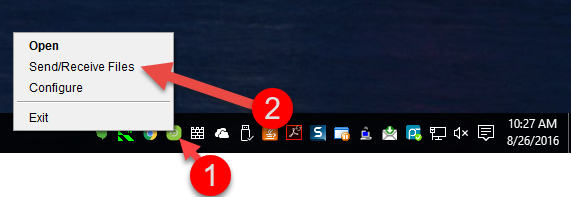
•Click Send/Receive Files item in the popup menu for SyncBox in the Task Menu.
•Fill out the fields in the next Window. Fields appearing in BOLD are required.
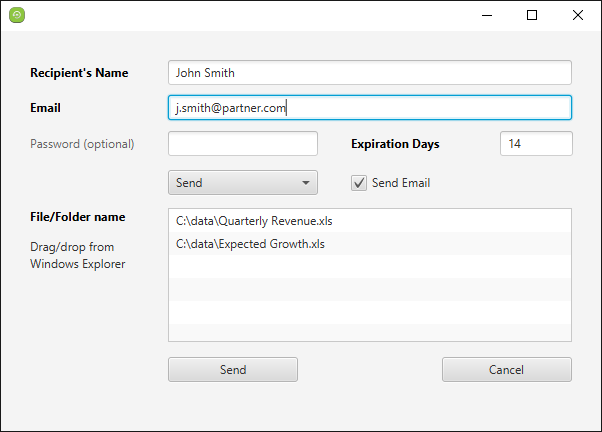
Following table describe what each field mean.
Recipient's Name
Name of the person you need to send/receive files. This name is used in notification emails.
Email address. Multiple addresses can be separated by a comma.
Password
Use this if you wish to protect the URL with a password. You must convey the value of this password using some different mechanism to the end-user. For example, by letting them know via phone. The value for this password will NOT appear in the email containing the public link.
Expiration Days
Every public link has an expiration date. Two things happen after a link expires:
1 - No one will be able to upload/download files using this link
2 - Uploaded files will be removed from the server.
Send/Receive
Select Send if you need to send files. Select Receive if you need to receive files from someone
Send Email
If checked, emails will be sent to the end-user. Additionally, the SyncBox user will get notification emails when files are downloaded or uploaded by the end-user.
File List
Drag-and-drop files from Windows File Manager (Finder on Mac OS X) to add files.
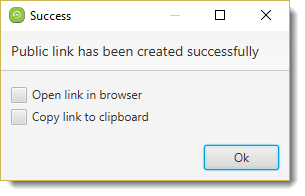
Once you press the send button the file(s) will be uploaded to the secure server and you are presented with a success box with two options to copy the link for your user to be able to download the file(s). If you choose for example the copy to clipboard option the link will be able to be copies to an email you can then send to your user.
Sending files to non SyncBox users
By choosing to copy the link to clipboard a user can create a email into which the link can be pasted to use by the receipien. In this fashion the receiver does not have to have a SyncBox account.
The link to be copied into the email will resemble something like:
securebackup.accra.ca/app?operation=pubopp&st=ta&li=201209010-1534079_12_5344210293
When including it in a email or giving the link to your user prefix it with HTTPS:// to make the receiver download it in a secure and encrypted tunnel to his PC. the secure tunnel prevents somebody from intercepting the file transfer.
HTTPS://securebackup.accra.ca/app?operation=pubopp&st=ta&li=201209010-1534079_12_5344210293
Confirmation of Download
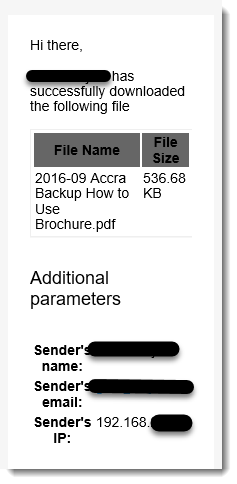
Once the receiver downloads the file(s) a confirmation of the download is sent to the sender.