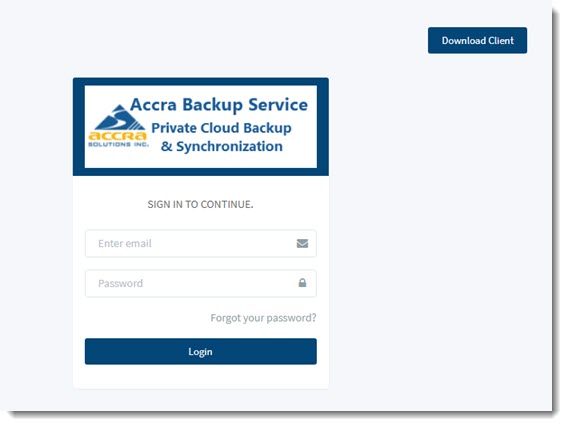
The Accra Backup Service can be access via a WEB browser. Connect to the Accra Backup Server using a web browser and go to the web site https://securebackup.accra.ca
You will be presented with a login screen. Enter your account email address and password. This information was provided to you when you signup for the Service.
Once log into the WEB Site, you are presented with various options.
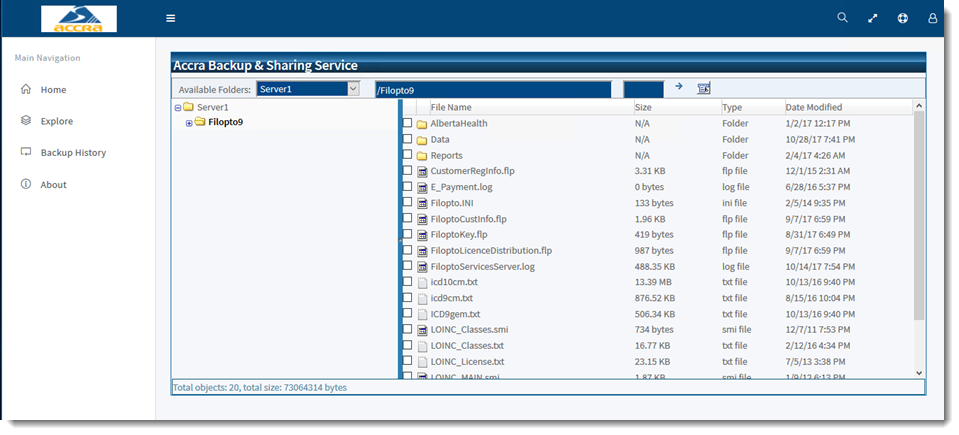
Home: displays the Share Page that displays all files you are backing up or sharing with other users.
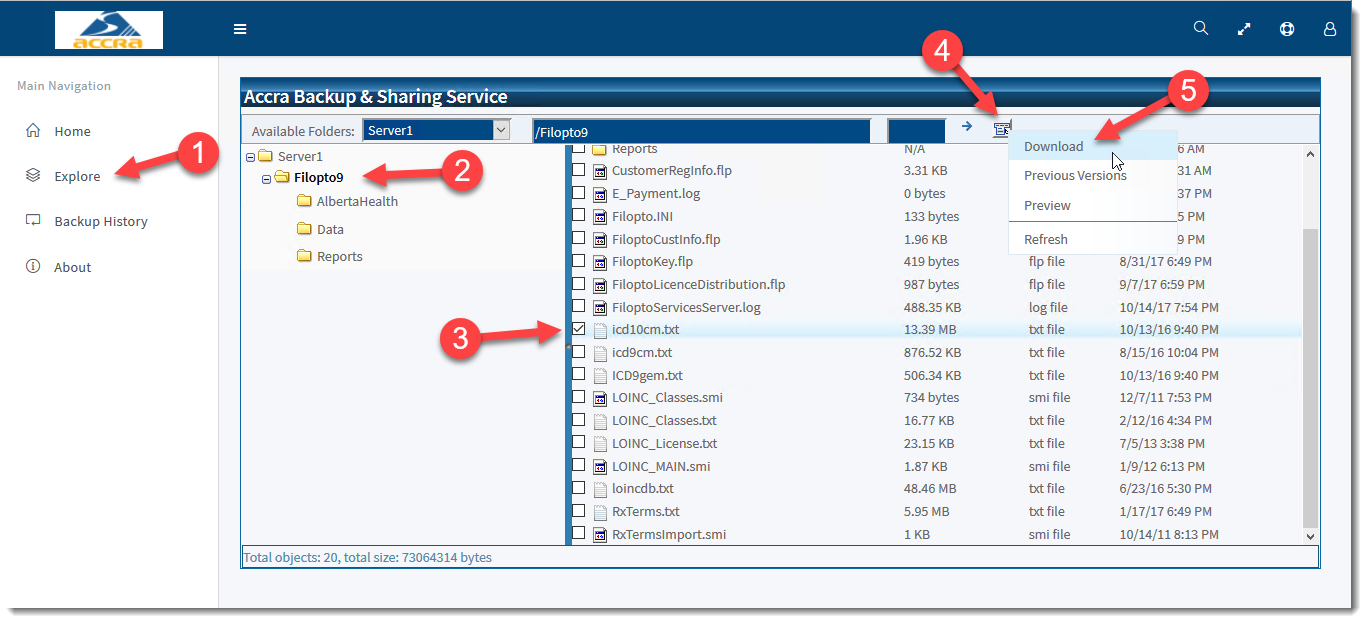
Explore: displays and permits you to navigate in the file / folders and Download / restore the files to your PC. ( Note you can also restore files from the Backup client). The other two options available are to view a Previous Version of the file (only available if you have versioning turned on). and the Preview option which allows for the viewing of a file (you must have a program capable of opening the file and displaying its content).
 .
.
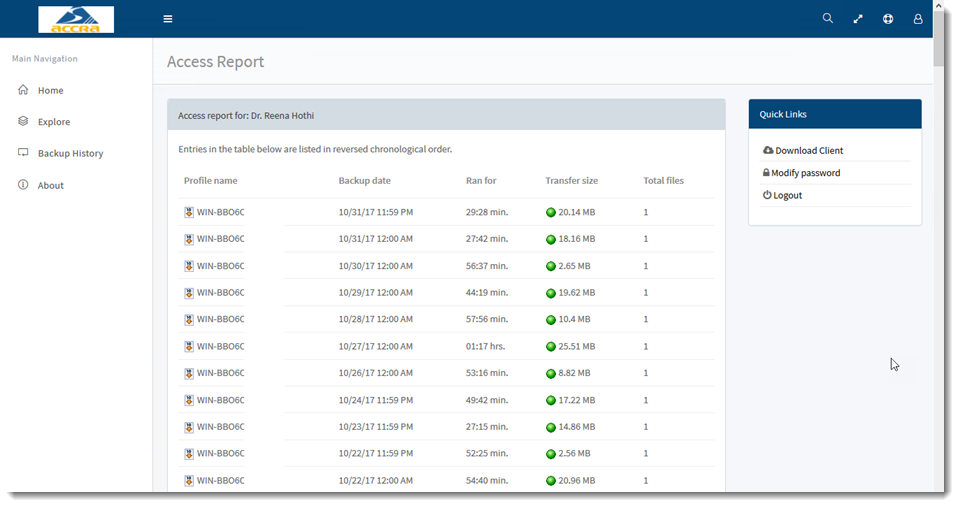
Backup History: Displays all the backups on record.
IMPORTANT
You can modify your password from this screen. We do not recommend changing your password. The password provided to you is a very strong password and is directly linked to your backup account Changing your password may cause issue with your backups. If you need to change your backup password, please contact Customer support and we will generate another strong password for you.
|
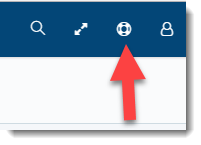
You can contact support by using the support icon located at the top right of the screen.